
Fake McAfee Pop-Ups Won't Go Away? Here's the Real Fix
Short answer: those “McAfee” alerts almost certainly aren’t from McAfee. They’re browser notifications from a scam website, and the fix is mostly a settings cleanup plus a proper scan for the junk that usually rides along.
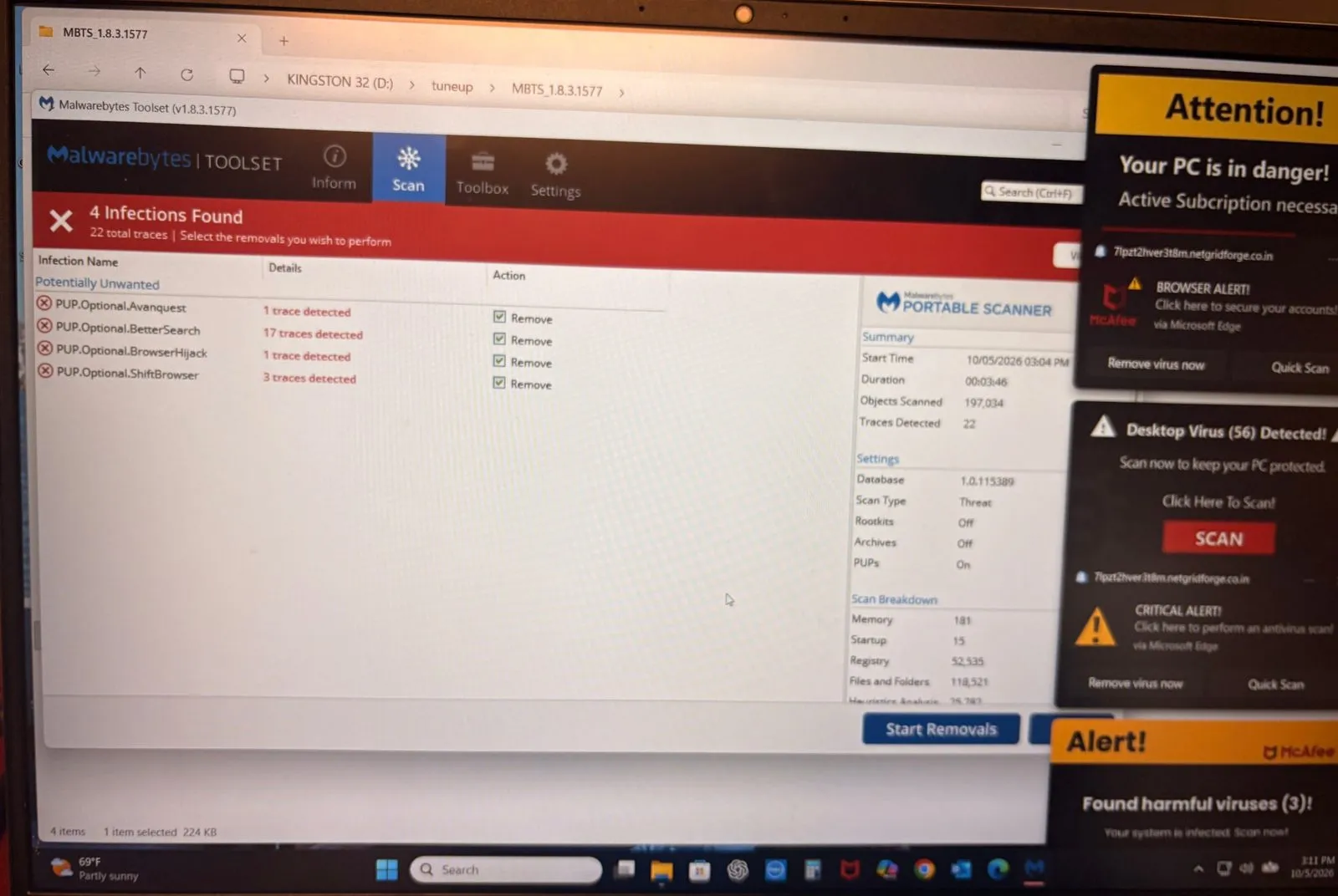
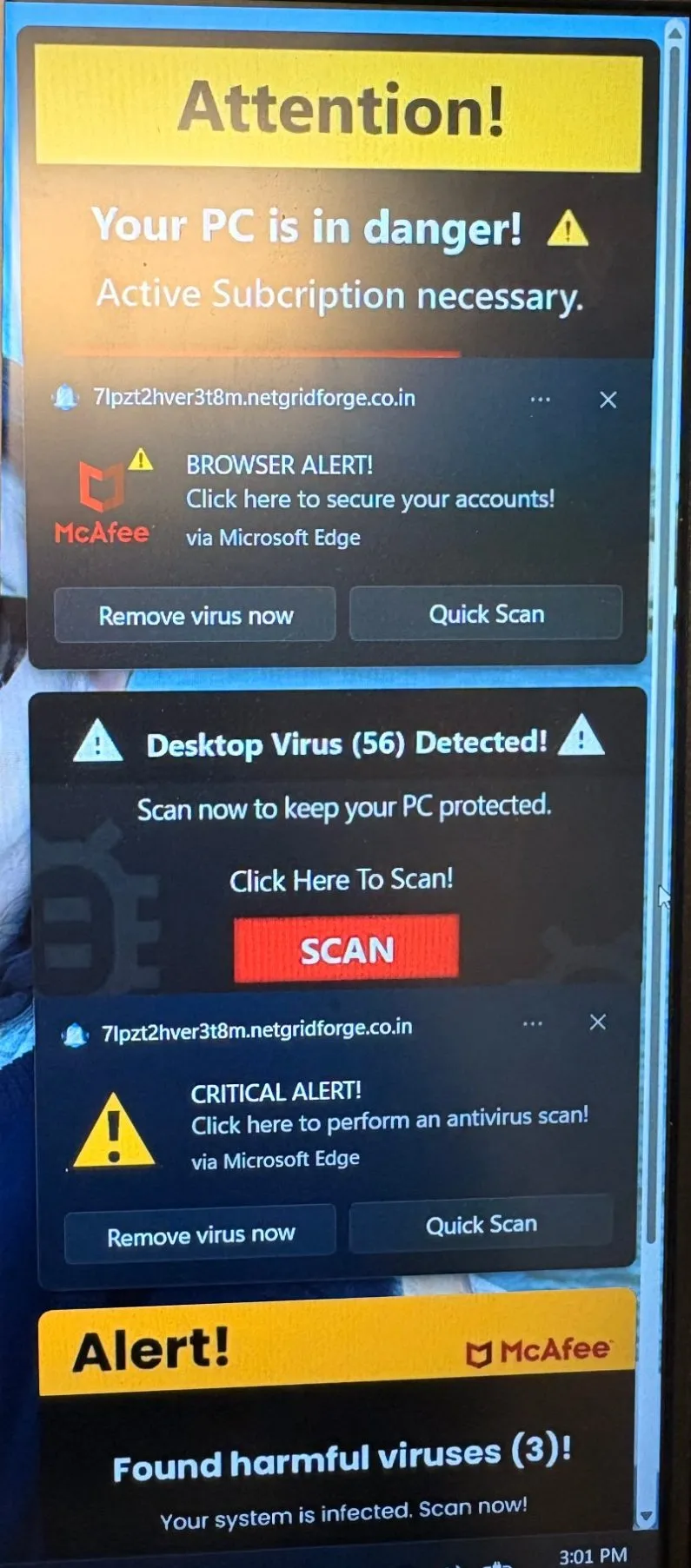
This week a customer in their late 60s brought us a Windows 11 laptop that had been taken over by pop-ups: “Attention! Your PC is in danger! Active Subscription necessary.”, “Desktop Virus (56) Detected!”, “Found harmful viruses (3)!”, and later “YOUR DEVICE HAS BEEN COMPROMISED”, each with big red Scan and Remove virus now buttons. Stacks of them, covering the screen, with McAfee’s logo on top.
The twist: this customer has a real, active McAfee subscription. It didn’t catch this. Here’s why, and what we did about it.
What’s actually behind fake McAfee pop-ups?
Look closely at the small text on each alert and you’ll see the giveaway: “7lpzt2hver3t8m.netgridforge.co.in” followed by “via Microsoft Edge.” That’s not a McAfee address. It’s a throwaway website, and the alert is a browser push notification, a feature that lets a website send messages to your screen whenever it wants, even if you’re not on that site.
That’s the part antivirus doesn’t see. In this case, we asked the customer how it started: she had clicked a link on Facebook, landed on a page she didn’t recognize, and clicked Allow when it asked to show notifications. That single click is all it takes. From then on, that site can send alerts that look just like system warnings, and it can keep rotating to new addresses, which is why you’ll see more than one in a stack.
The same prompt shows up on ads, “click Allow to prove you’re not a robot” pages and fake video players, so Facebook is just one of many places it appears. The habit that protects you: if a page you didn’t ask for wants to “show notifications,” click Block, or close the tab.
It wasn’t just pop-ups
This is where our job differs from “just turn off notifications.” When we ran a Malwarebytes Toolset scan, it found 4 infections and 22 traces across the system: browser-hijacker and “potentially unwanted” programs named Avanquest, BetterSearch, BrowserHijack and ShiftBrowser. These come bundled with free downloads, and they change your browser’s search and settings behind your back.
Worth knowing: the pop-ups were still there after that first cleanup. That’s normal. The notification permission lives in the browser, not in those programs, so removing one doesn’t remove the other. We can’t say with certainty which of the two started the whole thing, and for the customer it doesn’t matter. Both had to go.
What we did, step by step
- Removed the unwanted programs with professional-grade scanners, starting with Malwarebytes Toolset, then running a second and third opinion with other tools to catch what the first one misses.
- Reset the browser settings. Resetting Microsoft Edge to its defaults cleared the notification stack. Before resetting, we checked Edge’s Privacy and security → Recent activity list and found three unfamiliar sites that had been allowed. We reset Chrome too, as a precaution.
- Confirmed the pop-ups were gone and checked that no remote-access software had been installed.
The result: a clean computer, a browser that behaves, and a customer who knows what to watch for. Our virus and malware removal is a flat fee based on the job, not a clock, and the page lists typical pricing.
How to tell a real McAfee alert from a fake one
- Real alerts come from the McAfee app, not from a notification labeled “via Microsoft Edge” or “via Google Chrome.”
- Look at the site name at the top of the notification. A random string
ending in
.co.in,.xyzor similar isn’t an antivirus company. - Real antivirus doesn’t ask you to click “Remove virus now” in a pop-up or to renew a subscription through a browser notification.
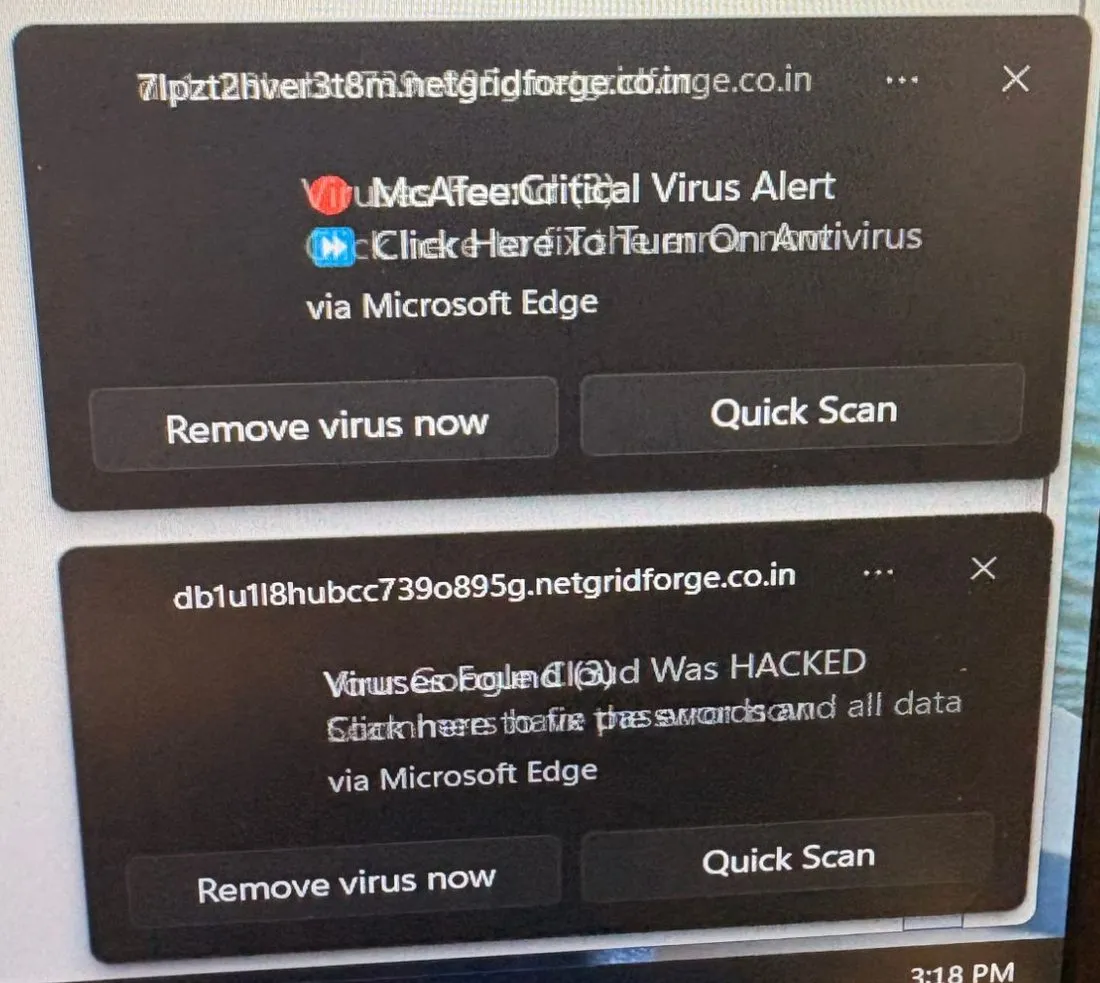
- Escalating wording is a tell. “Virus Found” turning into “Device Compromised” and “Google Cloud was Hacked” within minutes is designed to rush you.
For the older version of this problem, with the full-screen “call this number” pages, see the “Virus Found, Call Now” pop-up scam.
How to stop these notifications yourself
- In Edge, go to Settings → Cookies and site permissions → Notifications and remove any site you don’t recognize. Then check Privacy, search and services → Site permissions → Recent activity.
- In Chrome, go to Settings → Privacy and security → Site settings → Notifications and do the same.
- Don’t click anything on the pop-up itself, including the X on a fake notification inside a web page. Dismiss the real Windows notification, or go straight to the settings above.
- Uninstall programs you don’t remember installing (Settings → Apps), and check your browser extensions for anything unfamiliar.
You can also report the scam site at ReportFraud.ftc.gov.
If the pop-ups return, or you see search results or a homepage you didn’t choose, there’s probably something installed that a settings change won’t remove. That’s when a proper scan matters.
Need a hand? We help Marlboro and nearby towns
If pop-ups like these are on your screen, or someone in your family keeps getting them, send us a photo of what you’re seeing or bring the computer to our Marlboro, NJ shop. We help customers in Marlboro, Morganville, Manalapan, Freehold, Holmdel, Colts Neck, Aberdeen, Matawan and Old Bridge. Looking is free. If it needs cleaning, our virus and malware removal service handles the whole job: removal, browser reset, and a check that nothing else got in. Seniors especially: we’re happy to walk you or a family member through what to avoid next time.
Frequently asked questions
Why am I getting McAfee pop-ups when I don't even use McAfee?
Because the pop-ups aren't from McAfee. Scammers borrow well-known antivirus logos (McAfee, Norton, Microsoft) because people trust them. Even customers who do have real McAfee installed get these, since the fake alerts come through the browser, not through the antivirus program.
Why didn't my antivirus catch it?
Part of the problem isn't a virus at all. When you click "Allow" on a website's notification request, that's a browser setting you chose, so antivirus software has nothing to flag. The other part, browser hijackers and unwanted programs, are often classed as "potentially unwanted" rather than as malware, and many antivirus settings don't treat those as a priority. A second-opinion scanner aimed at that category can find what the main one didn't.
How do I stop Edge notification pop-ups right now?
In Microsoft Edge, open Settings, then Cookies and site permissions, then Notifications. Remove any site you don't recognize from the "Allow" list. Also check Privacy, search and services, then Site permissions, then Recent activity, which lists every site that was recently allowed to do something. Chrome has the same list under Settings, Privacy and security, Site settings, Notifications.
Can a link on Facebook really cause this?
Yes. In the case we cleaned up, the customer clicked a link on Facebook, landed on an unfamiliar page and clicked "Allow" on a notification prompt. The link itself didn't install anything. The permission is what let the fake alerts through. When a page you didn't expect asks to show notifications, choose Block.
Do I need to change my passwords after seeing these pop-ups?
Notification spam alone doesn't steal passwords. But if a browser hijacker or unwanted program was also installed, as it was in this case, it's wise to change the passwords for your email, bank and any other important accounts. Do it from a different, clean device or after the cleanup, and turn on two-step verification where you can.
Should I click "Remove virus now" or "Quick Scan" to see what happens?
No. Those buttons belong to the scam. Close the notification with the X, or better, go into your browser's notification settings and block the site that sent it. Never click through to "see what it does."