
Windows 10 Updates Extended to 2027: What to Do With Your PC
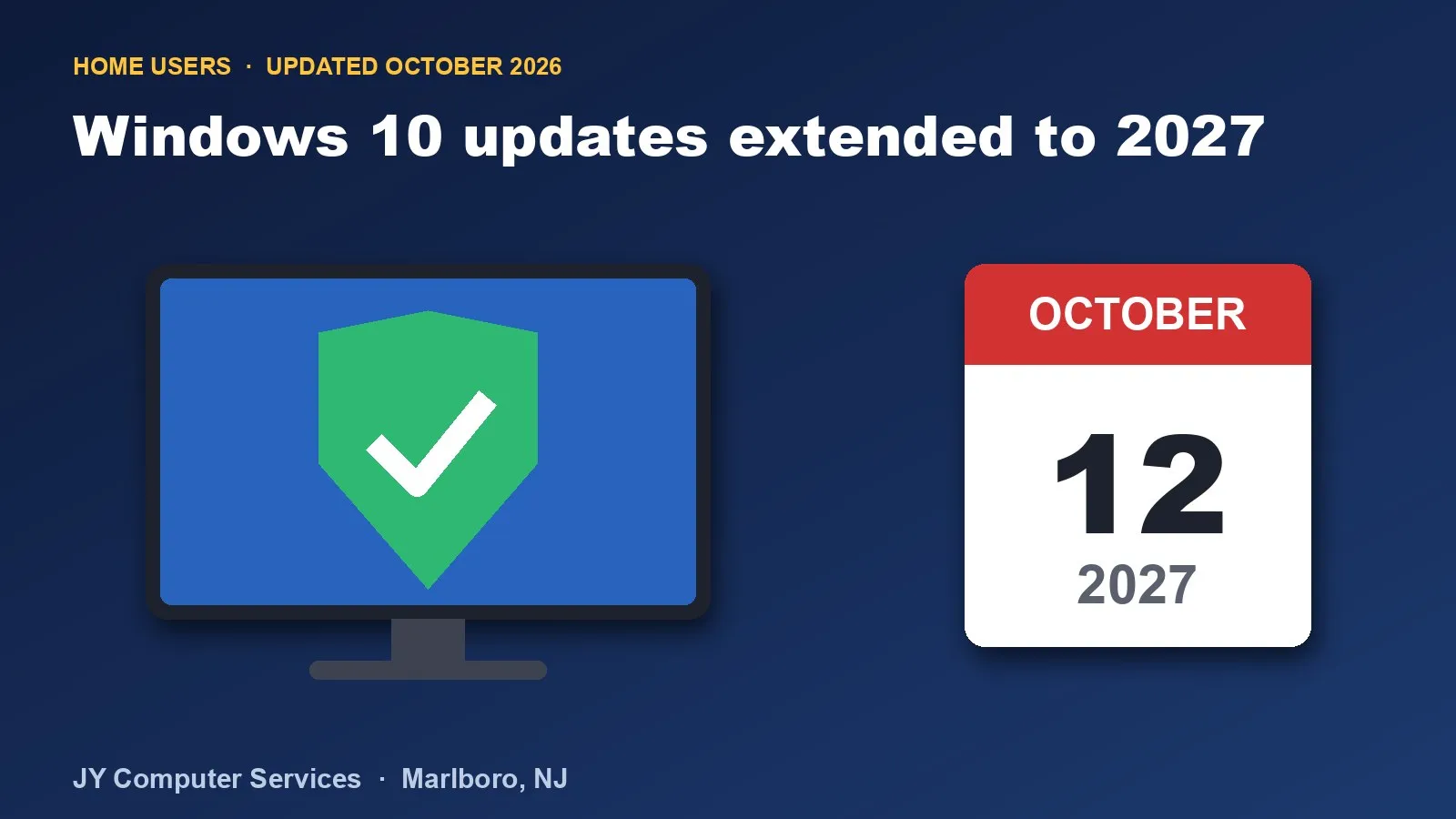
Short answer: your Windows 10 computer won’t stop working, and Microsoft just gave home users an extra year of free security updates, now running through October 12, 2027. Whether you do something about it depends on your computer, how you use it, and what’s on it.
This is one of the most common questions we get right now, usually in the form “do I have to buy a new computer?” and “will I lose my files?” Here’s what’s actually going on, in plain English.
What changed
Windows 10 left regular support on October 14, 2025. For home users, Microsoft offered a way to keep getting security updates for another year through its Extended Security Updates (ESU) program, originally ending October 13, 2026. In June 2026, Microsoft extended that program by another year, to October 12, 2027. The details are on Microsoft’s own page.
Will my computer stop working?
No, and this is the part that worries people most. When support ends, your computer keeps starting, your files stay where they are, and your programs keep running. What stops are the security fixes for Windows itself. Over time, an unpatched computer becomes an easier target, and some newer apps and websites may stop supporting it. That risk builds slowly. It doesn’t switch on overnight.
Will I lose my data?
Not because support ends. Nothing is deleted. But any computer can fail, and an unpatched one is easier to infect, so the one thing we’d ask everyone to do is make sure your photos and documents are backed up somewhere else. We back up first when it’s needed, before an operating-system update or repair, and before cloning a drive.
Is it safe to keep using Windows 10?
It depends on how you use it:
- Online and enrolled in ESU: you keep getting security updates through October 2027, so this is a sensible bridge while you decide what’s next.
- Online and not enrolled: your risk grows over time, especially for email, banking and shopping.
- Offline only: much safer, because most attacks arrive over the internet. It’s not zero risk, since a USB drive or a file copied from another computer can still carry something in. For a computer used only for old software, photos or documents, it can be a reasonable choice.
Can your PC run Windows 11?
It depends on the hardware. Microsoft’s Windows 11 requirements include a compatible 64-bit processor with 2 or more cores (generally 8th-generation Intel or newer), 4 GB of memory or more, 64 GB of storage or more, UEFI firmware with Secure Boot, and TPM 2.0. If your PC qualifies, the upgrade is free.
You can check with Microsoft’s PC Health Check app, or we can check it for you. We look at the processor, TPM and Secure Boot, along with the memory, storage and how the computer performs today. Some older PCs can’t upgrade. Others can become eligible with a hardware upgrade such as more memory or a faster drive, though a processor that’s too old usually can’t be fixed.
Your options
- Enroll in the Extended Security Updates. Free if you turn on Windows Backup (syncing your PC settings), or by redeeming 1,000 Microsoft Rewards points, or a one-time $30 plus tax. It needs Windows 10 version 22H2 with the latest updates and a Microsoft account that’s an administrator, and one license covers up to 10 of your devices.
- Upgrade to Windows 11, if your PC is eligible.
- Upgrade the hardware, if that makes the PC eligible and it’s worth it for the computer’s age and performance.
- Replace the computer, when it’s old, slow, or can’t be upgraded.
- Keep it offline, for a computer that doesn’t need the internet.
If you’d rather not use a Microsoft account
Signing in with a Microsoft account is required to enroll in the updates. Some customers prefer to stay away from one, and that’s their call. In that case we can set you up with a local account and a regular backup plan, and we help you get it running. We use AOMEI Backupper for this. (Full disclosure: we’re an AOMEI partner and can offer our customers a discounted subscription.)
A backup protects your files either way. It doesn’t replace security updates, so we’d talk through whether Windows 11, a newer computer, or limiting how the old one is used makes the most sense for you.
Watch out for “your Windows is expiring” scams
Every change like this brings scam calls, emails and pop-ups: “Your Windows is expiring, call now.” Microsoft doesn’t call or email to say your computer is about to be cut off, and it never asks you to pay a stranger over the phone or let someone connect remotely. If you get one, don’t call, don’t click. See the fake “call now” pop-up and the fake renewal email, and if you’re unsure, send us a screenshot.
Not sure what to do with your computer?
We’ll check whether your PC can run Windows 11, tell you honestly whether it’s worth upgrading, and help with whichever route you pick: hardware upgrades, data backup and transfer, or help choosing and setting up a new PC. We help customers in Marlboro, Morganville, Manalapan, Freehold, Holmdel, Colts Neck, Aberdeen, Matawan and Old Bridge, and we can often start by talking it through by phone, text, email or chat. Get in touch and we’ll tell you where your computer stands.
Information current as of October 2026. Microsoft’s program details can change, so we’ll update this post when they do.
Frequently asked questions
Will my Windows 10 computer stop working?
No. Your computer and your files keep working exactly as they do today. What stops is security fixes for Windows itself, unless you're enrolled in Microsoft's Extended Security Updates program. Over time, an unpatched computer is easier for criminals to attack, and some newer apps and websites may stop supporting it.
Will I lose my data when support ends?
Not automatically. Nothing is deleted when support ends. But old computers can fail at any time, and an unpatched one is easier to infect, so the one thing worth doing either way is a current backup of your photos and documents.
Is it safe to keep using Windows 10 offline?
Much safer, yes. Most attacks arrive over the internet, so a computer that never goes online has far less exposure. It isn't zero risk, since a USB drive or a file copied from another computer can still carry something in. It's a reasonable option for a computer used only for things like old software, photos or documents.
Can my PC run Windows 11?
It depends on the hardware. Windows 11 needs a compatible 64-bit processor (generally 8th-generation Intel or newer, with some exceptions) with 2 or more cores, 4 GB of memory or more, 64 GB of storage or more, UEFI firmware with Secure Boot, and TPM 2.0. Microsoft's PC Health Check app can tell you, or we can check it for you.
Is Windows 11 free?
For a PC that meets the requirements and runs Windows 10, the upgrade is free. If the PC doesn't meet them, the usual choices are enrolling in the Extended Security Updates program, upgrading the hardware if that makes it eligible, replacing the computer, or limiting how it's used.
Do I need a Microsoft account for the Extended Security Updates?
Yes. Enrolling requires signing in with a Microsoft account that is an administrator on the PC, and child accounts can't enroll. If you'd rather not use one, you can keep a local account and focus on backups, but that route doesn't include the security updates, so it's worth talking through what makes sense for your computer.
Is that "your Windows is expiring" call or email real?
No. Microsoft doesn't call or email to say your computer is about to be cut off, and it never asks you to pay a stranger by phone or give remote access. If you get one, don't call the number or click the link.