
Cloning an NVMe SSD Isn't as Simple as YouTube Makes It Look
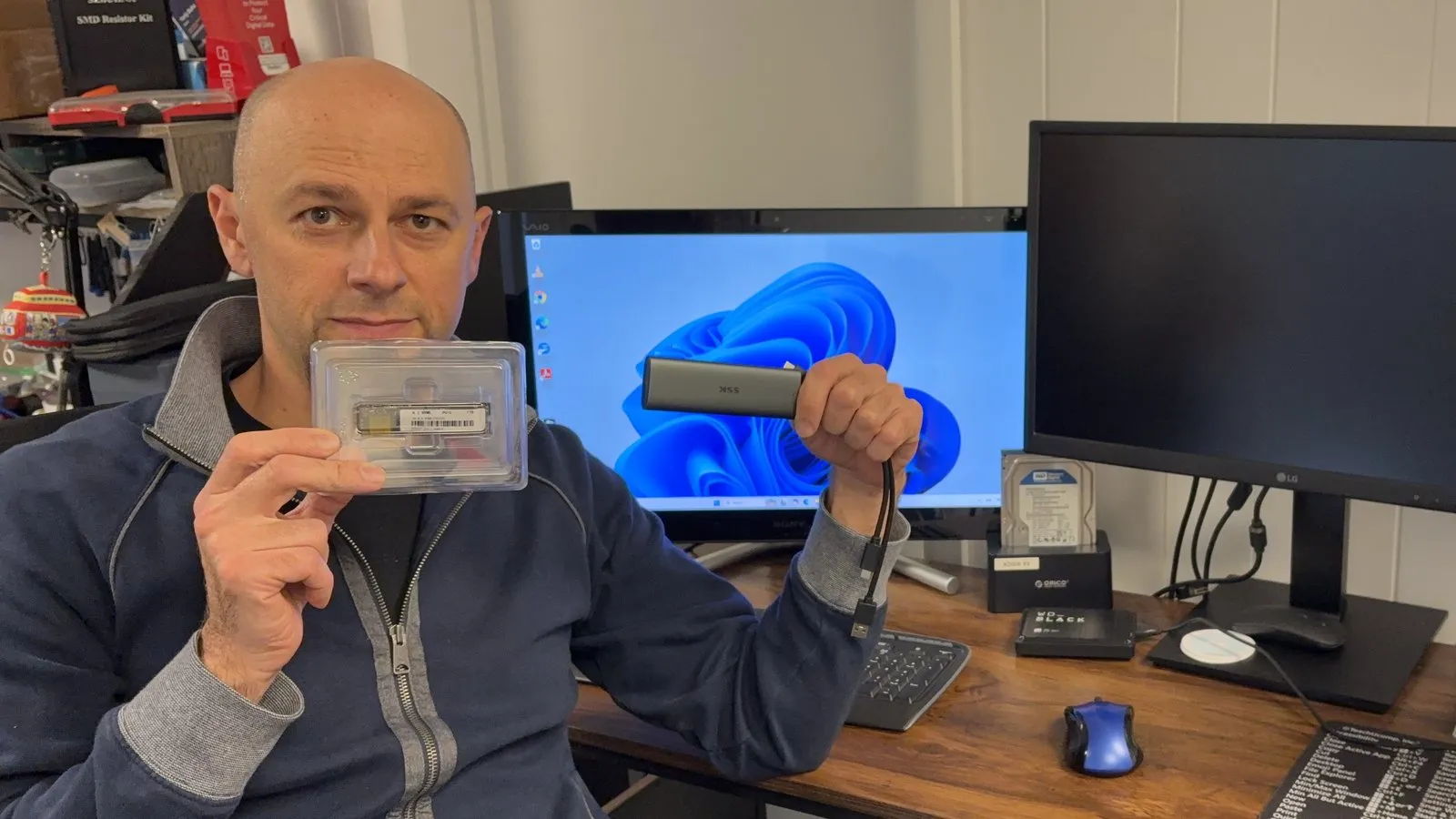
Short answer: cloning an old NVMe drive to a bigger one can be simple, and it can also go wrong in ways that cost you your data. The videos show the version where everything works. If your computer holds anything you can’t replace, it’s worth knowing where the risks are before you start.
A customer came to us recently after trying exactly this. He’d watched a few videos where it looked like a quick, mostly click-through job. His old drive was small, he’d bought a much bigger one, and he wanted everything moved over. He kept running into problems and couldn’t get a clone that worked, so he brought it in.
What the videos leave out
Cloning copies one drive’s contents onto another, and that works until it doesn’t. Most do-it-yourself clones connect the new drive through a small USB NVMe adapter, like the one in the photo above, which adds one more thing that can go wrong. A few things routinely trip people up:
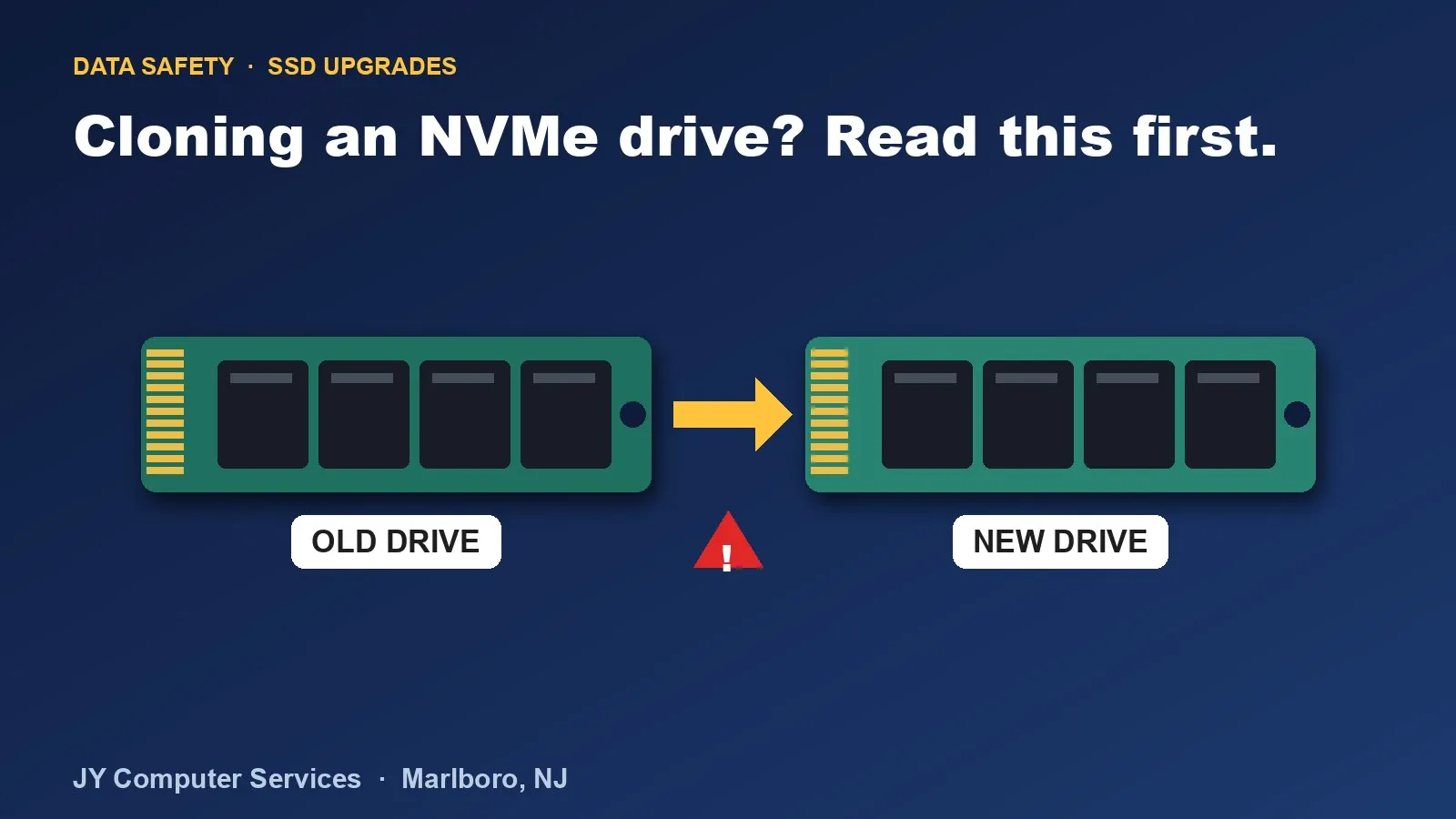
- You choose a source and a destination, and the tool trusts you. Pick them the wrong way around, or pick the wrong disk, and the tool will erase the drive you meant to keep. There’s usually no “are you sure?” that helps if you misread two similar-looking drives.
- The two drives can confuse Windows. Identical copies can clash, and the computer may refuse to use one or boot from the wrong one.
- The connection can fail partway through. A loose or underpowered USB adapter can interrupt a clone, leaving you with a drive that looks fine but is incomplete.
- Boot settings matter. Secure Boot, drive-controller settings and the partition layout all affect whether a clone starts up. Some tools need changes in the BIOS first.
- The extra space doesn’t appear on its own. Moving to a bigger drive often leaves most of it unallocated until the main partition is extended.
- Encryption and leftover sessions complicate things. BitLocker, a hibernation file, and other details can stop a clone from booting even when the files copied fine.
What happened to the customer’s clone
This is a real example of how a “simple” job unfolds. The computer was an HP
Pavilion Gaming desktop. He was upgrading to a much larger NVMe drive using a
disk-imaging tool run from boot media, with Secure Boot turned off beforehand.
After the restore, Windows wouldn’t start. It stopped with an
INACCESSIBLE_BOOT_DEVICE error.
Here’s what we found, in order:
- Checked what the computer could see. The disk had the right layout, but the main Windows partition showed as RAW, meaning Windows couldn’t read it. A lot of the new drive was also unallocated.
- Repaired the file system, carefully. A check of the partition came back with no bad sectors and the data intact. We never determined why it had shown as RAW.
- Rebuilt the boot files. That didn’t fix it. The same error came back.
- Found a leftover hibernation file on the clone and removed it. The error then changed to a different boot error. We can’t say for certain that file was the original cause, because it was removed at the same moment the error changed.
- Got into Safe Mode. That booted, and a system file check found and repaired corrupted files. After that, Windows started normally.
- Used the extra space, extending the main partition into the unallocated area.
- Ran a deeper repair. It failed in Safe Mode, then completed after normal boot, and a follow-up check found no integrity problems.
- Ruled out encryption (BitLocker was off), turned Secure Boot back on in the BIOS and confirmed the computer still started.
The files were never lost, and that wasn’t luck. At each step we checked what we were about to change before changing it, and we kept the data safe the whole way. It’s also a good example of why this takes more than clicking through a video. The first fix didn’t work, the second didn’t either, and it took several steps in the right order to get a clean, bootable drive.
If you’ve already made a mistake, stop
This is the most important part of this post.
If you think you cloned in the wrong direction, formatted the wrong drive, deleted a partition, or you see a drive that looks empty when it shouldn’t be:
- Stop. Don’t try one more fix.
- Power the computer off and leave the drives as they are.
- Don’t run more partition, cloning or “repair” tools, and don’t install anything onto that drive.
- Take it to a repair shop that does data recovery before you do anything else.
Deleted data is often recoverable. But every new thing written to the drive can overwrite the space where your files used to be, and once that happens, the data can be gone for good. Further tinkering is the thing that turns a recoverable problem into a permanent one.
How we handle it
We take customer data seriously. For an upgrade like this, we back up first when it’s needed, confirm the source and destination drives more than once before anything is written, and verify the result before it goes back to you. If a clone doesn’t boot, we work through it step by step and keep the original untouched, so there’s always a way back.
Need an SSD upgrade or a clone done right?
If you’re upgrading to a bigger drive, bring it to our Marlboro, NJ shop. Our hardware upgrades service moves your data over for you, and a backup and transfer is available if you want a safe copy first. If something has already gone wrong, or you think files were deleted, stop and contact us before touching the drive again. Our data recovery evaluation is free. We help customers in Marlboro, Morganville, Manalapan, Freehold, Holmdel, Colts Neck, Aberdeen, Matawan and Old Bridge.
Frequently asked questions
Can I just clone my NVMe drive to a bigger one myself?
Sometimes, yes. Plenty of people do it without trouble. But it's easier to get wrong than the videos suggest, because one wrong click on the source and destination drives can erase the wrong disk. If the computer holds anything you can't replace, such as photos, tax records or business files, back it up first, or let a shop handle it.
I think I deleted or overwrote the wrong drive. What should I do?
Stop right away. Don't keep trying fixes, don't run more cloning or partition tools, and don't install anything. Power the computer off and leave the drives as they are. Deleted data often can be recovered, but every new write to that drive can overwrite it for good. Take it to a repair shop that does data recovery before you do anything else.
Why does a cloned drive fail to boot?
The cloned drive can have the right files but still be missing or mismatching something Windows needs to start: the boot files, the partition layout, a drive-controller setting, or leftovers from a hibernated session. The cause isn't always obvious, so it takes careful step-by-step checking, not guessing.
Will my bigger drive use all of its space after cloning?
Usually not automatically. Many clone tools copy the old, smaller layout exactly, so the extra capacity shows up as unallocated space. It then has to be added to your C: drive, which is a step that's easy to skip.
What does a shop do differently?
We back up first, confirm which drive is the source and which is the destination more than once before anything is written, and verify the result before returning it. If something doesn't boot, we work through it in order and keep the original drive untouched.